Food & drink · Running the day
Running orders
The Orders board is where every order lands, whether a customer placed it from their phone or someone rang it up at the counter. It updates on its own, so you can leave it open all day.
The board
There are three columns, and orders move left to right:
- Waiting. Just came in. Nobody has started on it yet.
- Preparing. Someone's making it.
- Ready. Done and waiting to go out, or waiting for the customer to collect.
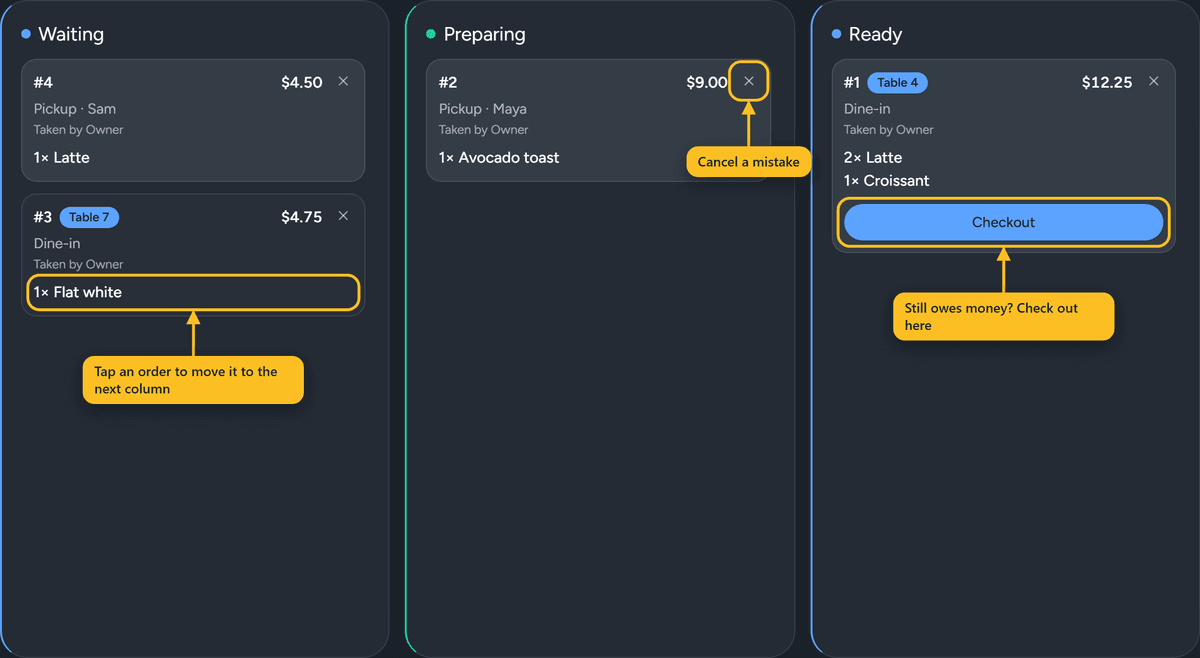
Tap an order to move it to the next column. Tap a ready order once more and it's done: it leaves the board and goes into Finished today. A dine-in order that's been served but not paid stays in Ready with a Served tag until you check it out. Customers who ordered from their phone see each step on their order page, so they know when to come up.
Each order shows its number, what's in it, whether it's pickup or dine-in, the table if there is one, and who took it. If part of it is already paid, you'll see that too.
Taking an order at the counter
- 1Tap New order.
- 2Tap items to add them. Tap again for two. If an item has options, you'll be asked to pick them.
- 3Choose Dine-in or Pickup. Add a table or a name if it helps.
- 4Tap Send to kitchen if they're paying later, or Checkout if they're paying now.
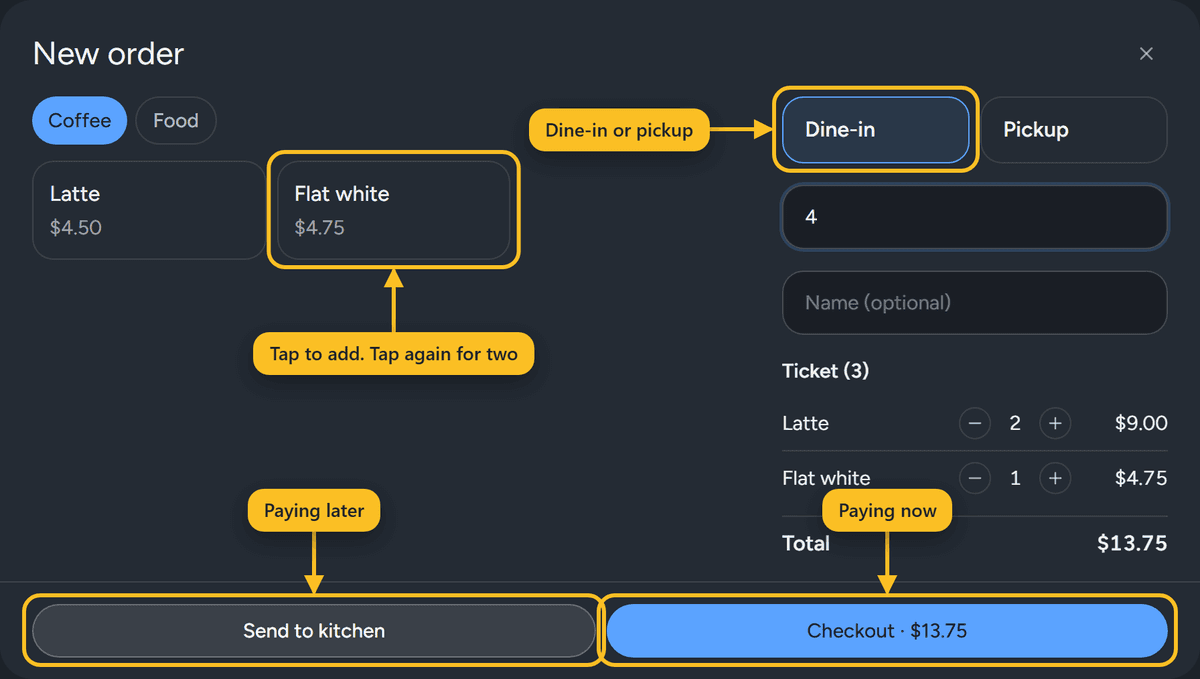
Counter orders work even when online orders are paused, so you can keep serving the people in front of you during a rush.
Heads up
If New order says there's nothing on the menu, you haven't published yet. Counter orders use your published food menu, the same one customers see.
Getting paid
When an order still owes money and it's ready or served, a Checkout button appears on it. Checkout covers the options.
Pickup orders that still owe money stay in Ready until they're paid, so food doesn't walk out the door unpaid by accident.
Canceling an order
Tap the small × in the corner of an order and confirm. It leaves the board and doesn't count as a sale. Use it for mistakes and duplicates.
If the food was made but the customer never showed up or paid, use Close unpaid on the Checkout page instead. That keeps an honest record of what was lost.
Finding an order you already finished
Tap Finished today above the board. You'll see every order that left the board today, whether it was served, picked up, canceled, or closed unpaid.