Food & drink · Your team
Kitchen & counter devices
Your team doesn't need their own logins. Instead, you sign in each screen once, and it stays signed in. A tablet in the kitchen, an iPad on the counter, a phone in a server's apron: each one only sees what its job needs, and none of them can touch your settings, menu, or payouts.
Pick what each screen is for
- Card reader. Pair it with the code on the reader and give it a name. At checkout, anyone can choose that name. Order it from Account › Payouts.
- Counter. Sees the board, takes new orders, and checks people out.
- Server. A server's phone. Takes orders at the table and checks out the table. If a cashier handles the money, turn off Can take payments and the server just takes orders.
- Kitchen. Sees the board and moves orders along. It can't take new orders, cancel anything, or take payments.
- TV. Shows your food menu or order numbers. Nothing to tap. TV screens
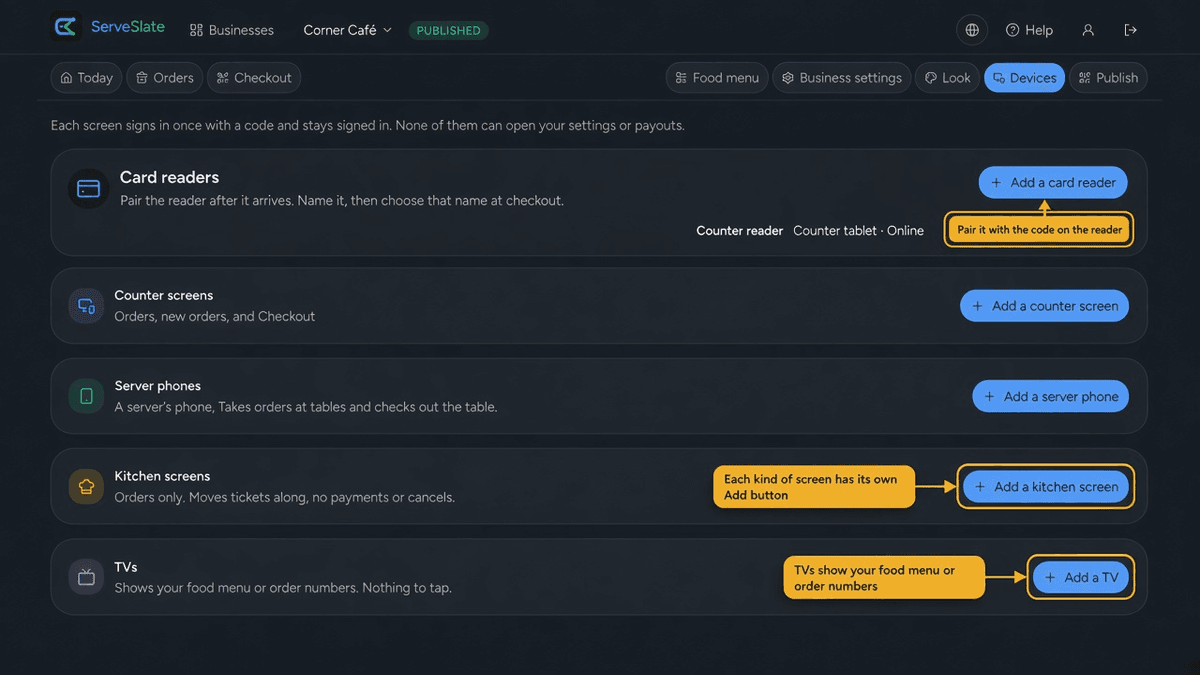
Devices lists card readers first, then each kind of screen as its own card. Each card shows what's already set up and an Add button for that kind.
Signing in a device
- 1In your business's Set up menu, open Devices.
- 2Tap the Add button on the card for the kind you want, like Add a kitchen screen or Add a server phone.
- 3Give it a name your team will recognize, like "Kitchen tablet" or "Sam's phone", then tap Create code.
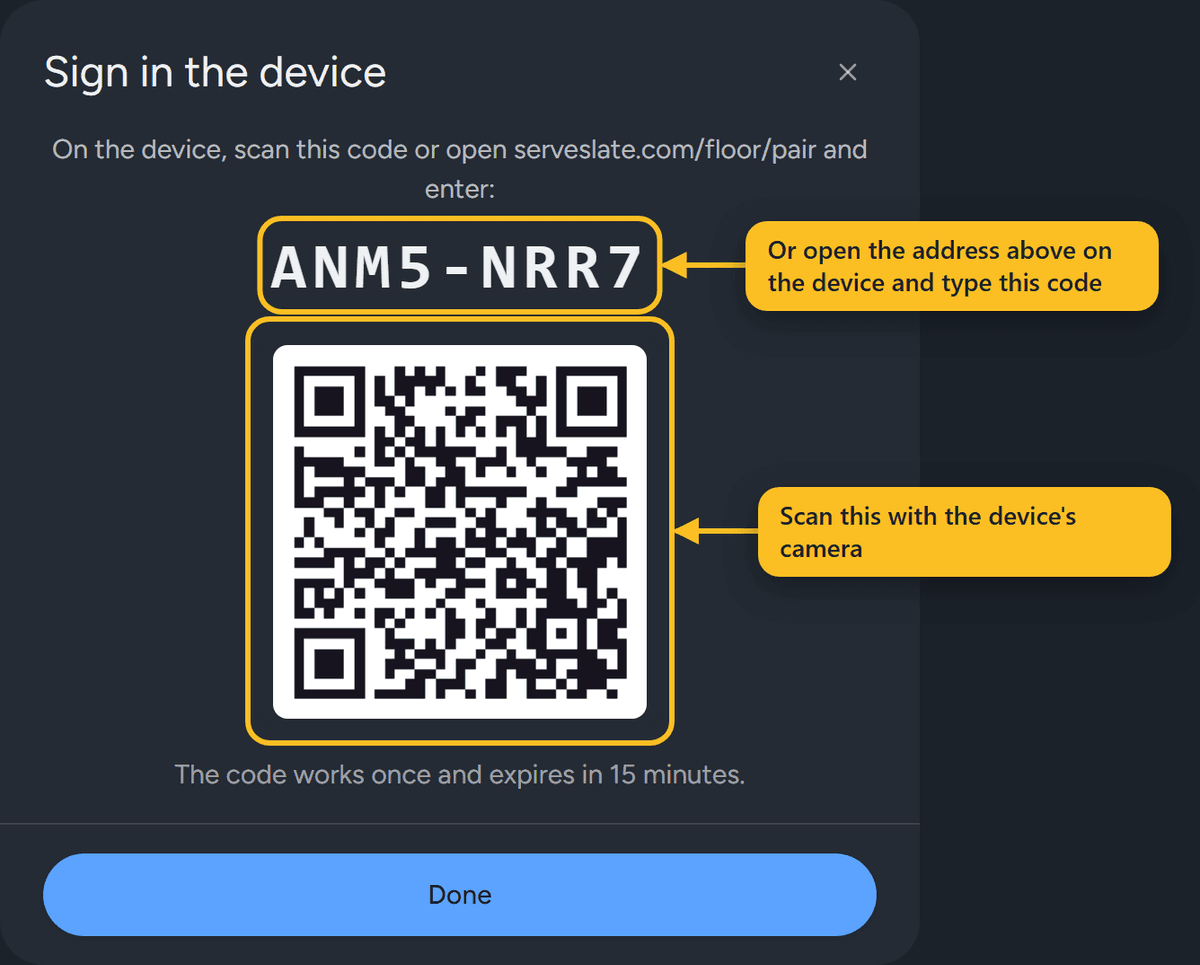
- 4On the device itself, scan the QR code that appears, or open the address shown and type in the code.
- 5That's it. The device opens straight onto the board.
Heads up
Each code works once and expires after 15 minutes. If it runs out, just add the device again.
Good to know
A card reader is not signed in that way. Tap Add a card reader, then enter the pairing code on the reader itself.
Changing a device
Open Devices and tap Edit next to the one you want to change. You can rename it, change what it's for, or turn payments on or off. Changes apply right away, and the device stays signed in.
Removing a device
If a tablet goes missing or someone leaves with a phone that was signed in, tap Remove in Devices. It's signed out immediately and can't get back in without a new code.
You can have up to 20 devices on a business. Each one shows when it was last used, which makes it easy to spot the ones nobody needs any more.