Food & drink guide
Setting up food & drink
This guide is for cafés, bars, bakeries, food trucks, and anywhere else that sells food & drink. Customers scan a QR code, order from their phone, and your team runs the orders from a board. Here's the whole setup. Nothing goes public until you publish.
Already set up? Jump to your part
Create your account
- 1Go to Sign up and enter your name, email, and a password.
- 2We'll send you an email. Open it and tap the link to confirm your address.
Good to know
You can build and preview without confirming, but you'll need a confirmed email before you pick a paid plan or set up payouts. If the email doesn't show up, check spam, then use Resend confirmation on the banner.
Add the business
- 1On Businesses, tap Add business.
- 2Pick Food & drink, then give it a name and your address.
- 3You land on your new business with a short setup banner at the top. Follow it in order and you won't miss anything.
The kind of business can't be changed later. If you picked the wrong one, delete it from the ⋯ menu on its card and add it again.
Hours, ordering, and tax
- 1Open Business settings and fill in your hours.
- 2Turn on Accept orders.
- 3Choose Pickup, Dine-in / visit, or both.
- 4Under How customers pay, pick When they arrive or finish or When they order.
- 5Turn on Ask for a tip if customers should be able to add one.
- 6Add a tax rate if your prices don't include it.
When they arrive or finish works with no setup: take cash, use your own card machine, and mark the order paid with Cash or other. When they order makes pickup customers pay on their phone before the order reaches the kitchen, and needs Payouts. Dine-in customers always pay at the end.
Add Closed dates for holidays so nobody turns up to a locked door.
Make it look like you
Under Look, pick a theme and layout, add your logo, and set your colors. The preview on the right shows what customers will see. Don't overthink it; you can change it any time.
Your team
Food & drink teams don't need personal logins. Instead you sign in each screen once, like the kitchen tablet or a server's phone, and it stays signed in for whoever's on shift. See Kitchen & counter devices.
Publish
- 1Open Publish and tap Publish changes.
- 2Tap View live page to see it the way a customer would.
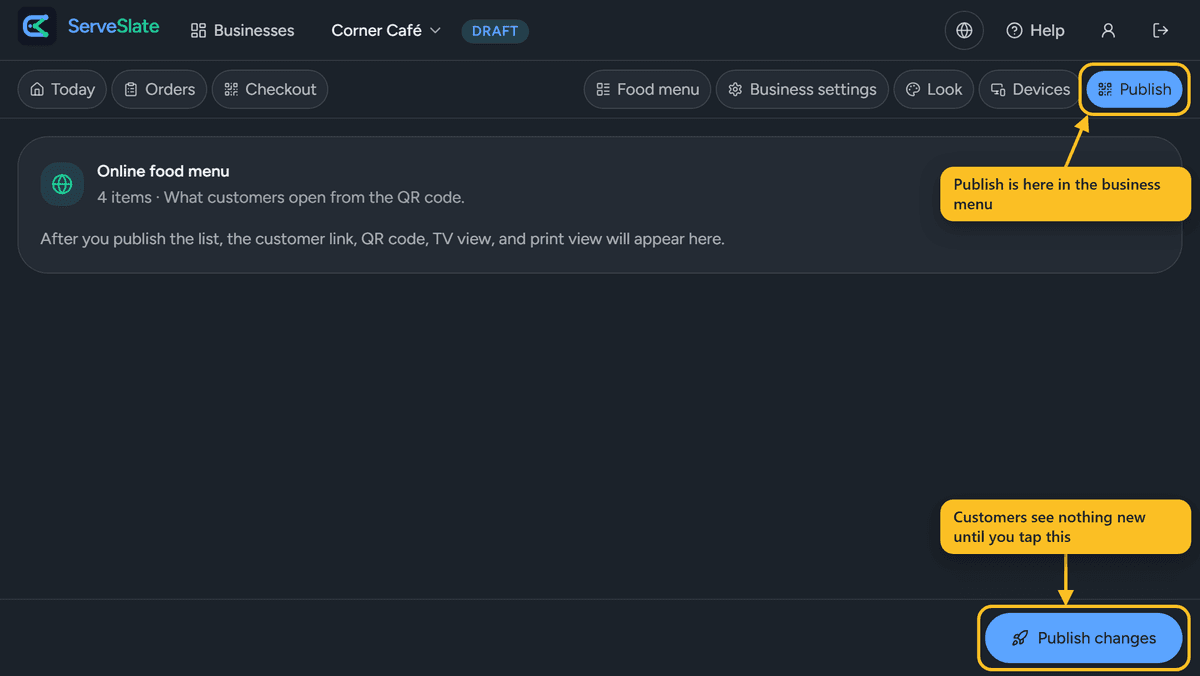
The list needs at least one item. Customers keep seeing the version you last published until you publish again, so you can edit freely without anyone seeing something half-finished. Settings are different: hours, payment rules, and booking rules go live as soon as you save them.
Good to know
Free and Pro each publish up to 5 businesses. Plus publishes one, and publishing a second offers an upgrade to Pro. More than 5 is a request to support@serveslate.com. See Your subscription.