Food & drink · Your team
Working the counter
You're on the counter. Your screen shows every order as it comes in, whether it's from a customer's phone or one you ring up yourself. You'll also take payments.
Reading the board
Orders show up in Waiting, move to Preparing when the kitchen starts on them, then to Ready. Each one has a number. That's what you call out, and it's what the customer sees on their phone.
Tap an order to move it along if the kitchen hasn't. Tap a ready order again when it's gone out.
Ringing up an order
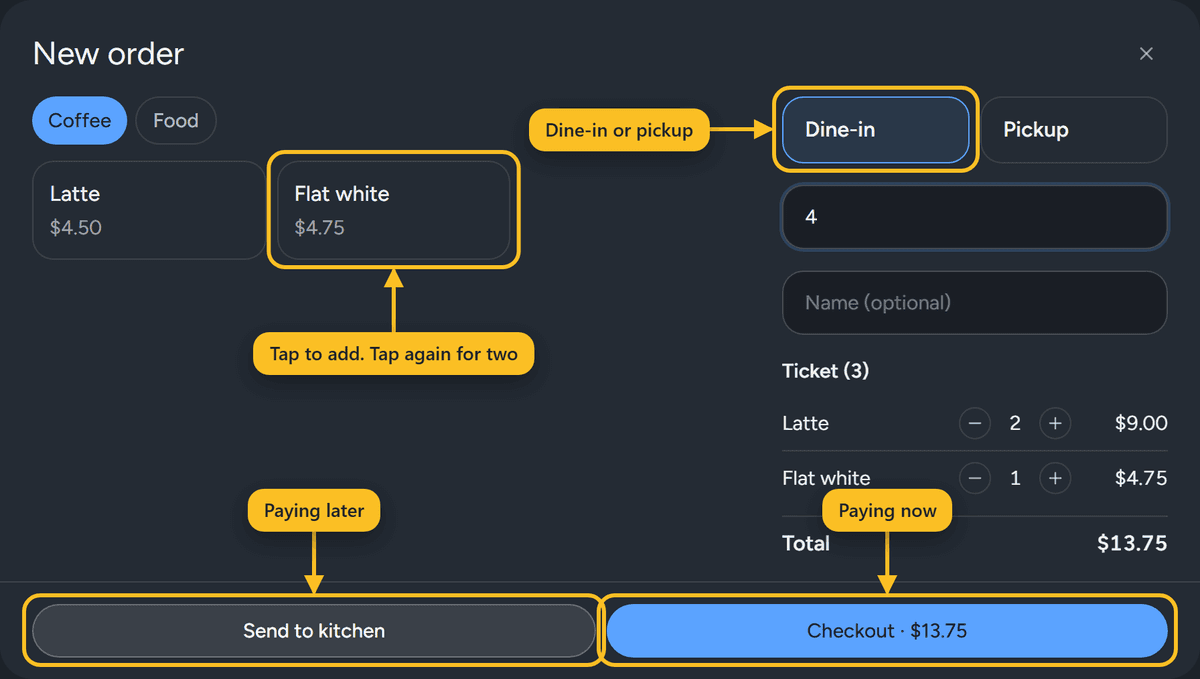
- 1Tap New order.
- 2Tap each item they want. Tap again to add another one.
- 3Pick Dine-in or Pickup. Add their table or name if it helps the kitchen.
- 4If they're paying now, tap Checkout. If they'll pay later, tap Send to kitchen.
Tip
Made a mistake? Use One less on the ticket before you send it.
Taking payment
When an order is ready and still owes money, it has a Checkout button. Tap it and choose:
- Pay with card reader if this business has a reader. If there is more than one, choose it by name. On a reader with a screen, they choose the tip, then tap or insert their card.
- QR pay if they want to pay by card on their own phone. Turn the screen around and let them scan.
- Cash or other if they paid cash or used your own card machine. Choose the tip they left, or no tip.
- Close unpaid if they left without paying. Only do this when the money really isn't coming.
Good to know
If you don't see QR pay, card payments aren't set up yet. Take cash, or ask the owner.
Pickup orders that owe money stay in Ready until you check them out, so nothing gets handed over unpaid.
Canceling
Tap the × on an order to cancel it. It's for mistakes and duplicates, not for orders nobody paid for. Those get Close unpaid on the Checkout page.
When it gets busy
Tip
If the owner pauses online orders, customers can't order from their phones for a bit, but you can still take orders at the counter as normal.