Bookings · Your team
Devices
A card reader takes a payment at checkout. A TV in the window or waiting area shows your service list or open times. You sign the TV in once with a code. Neither one can open your settings or payouts.
What you can add
- Card reader. Pair it with the code on the reader and give it a name. At checkout, anyone can choose that name. Order it from Account › Payouts. The card appears here once payouts are ready, in countries where Stripe ships readers.
- TV. Shows your service list or open times. Nothing to tap. TV screens
Devices lists card readers first, then TVs. Each card has its own Add button.
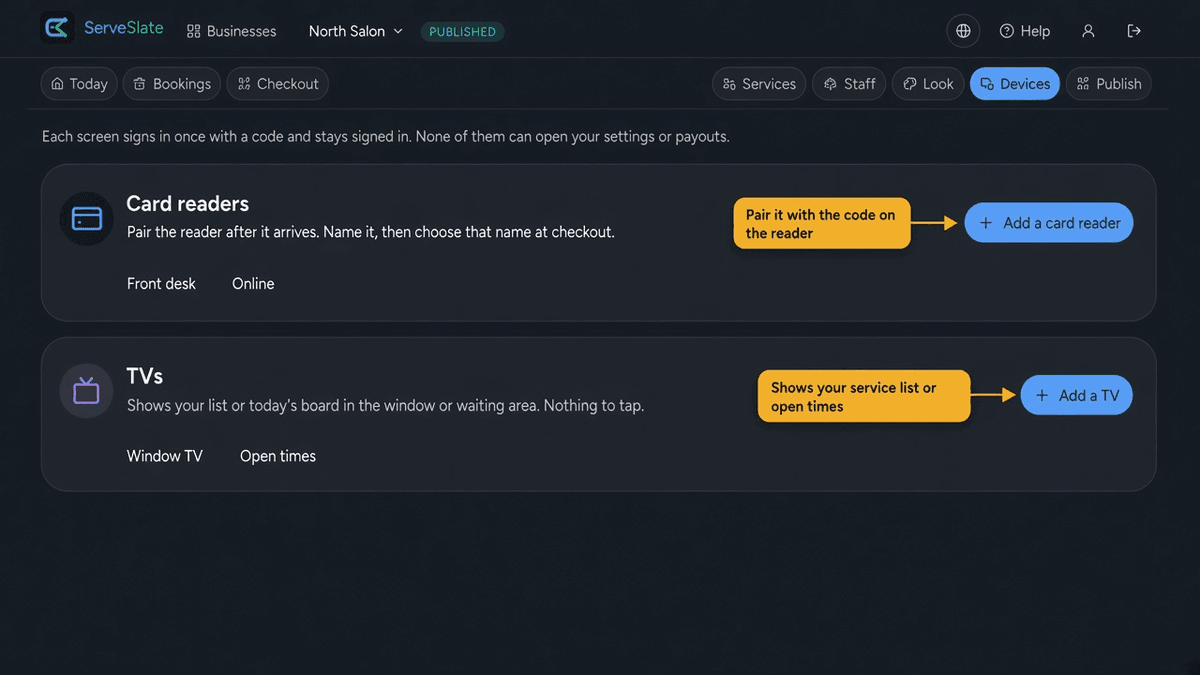
Pairing a card reader
- 1On Account › Payouts, open Shop card readers and order one. Stripe ships it, and you pay Stripe. It is separate from your subscription.
- 2When it arrives, in Set up, open Devices.
- 3Tap Add a card reader. On the reader, open settings and generate a pairing code, then enter that code.
- 4Give it a name people will recognize at checkout, like "Front desk" or "Room 2".
Good to know
A reader does not sign in like a TV. If you have more than one, checkout asks you to choose the name.
Signing in a TV
Under TVs, tap Add a TV. The rest of the steps, including what it can show, are on TV screens.