Classes · Running the day
Checkout and taking payments
When someone on a roster still owes for the class, you'll see a Checkout button next to them. You can also open Checkout from the menu at the top at any time.
How they can pay
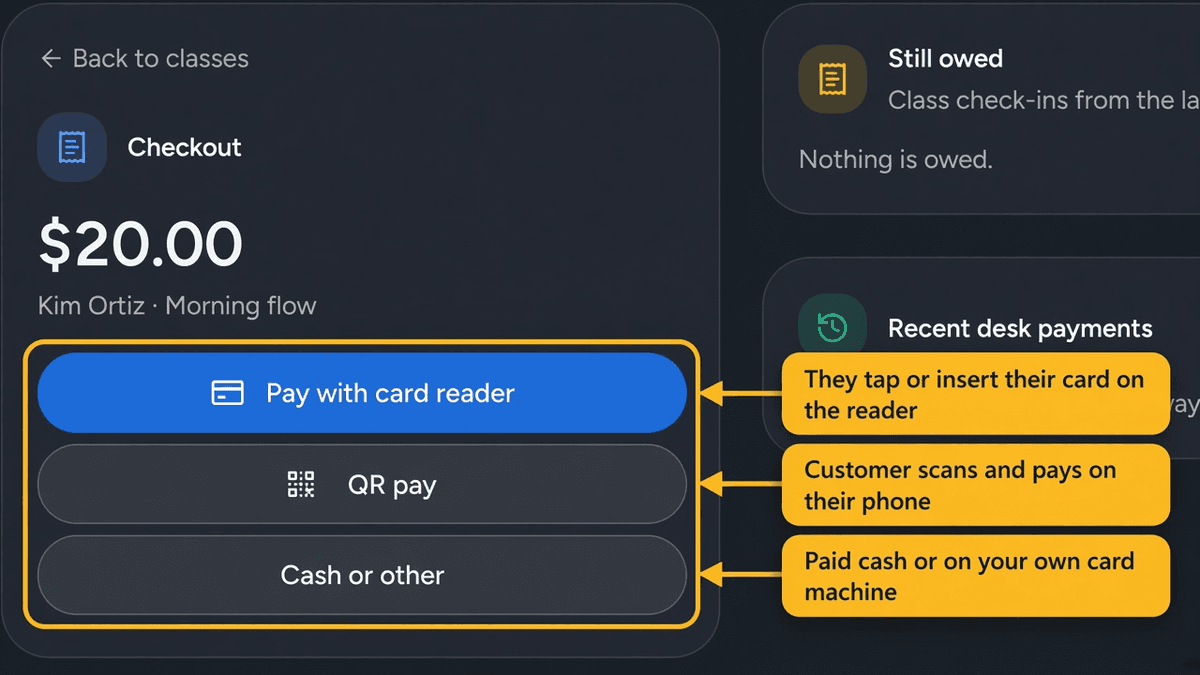
When a signup is finished and still owes money, it has a Checkout button. Tap it and pick how they pay:
- Pay with card reader. Shows when this business has a reader paired in Devices. If there is more than one, choose it by name. It sits beside QR pay. When Ask for a tip is on in Business settings, a reader with a screen lets the customer pick no tip, 15%, 18%, 20%, or their own amount, then they tap or insert their card. The ticket updates when the payment goes through. A reader with no screen charges the bill only. If you close that screen while it is still waiting, the ticket shows View so you can open it again.
- QR pay. A QR code appears on your screen. The customer scans it with their phone camera and pays by card or phone wallet. Your screen updates by itself when the payment goes through. You can also text or email them the link. If you close that screen while it is still waiting, the ticket shows Show QR so you can open it again.
- Cash or other. Use this when you took the money some other way: cash, your own card machine, a gift card. When Ask for a tip is on, the tip choices sit in the box with this button. Choose the tip they left, or no tip. Then it marks the ticket paid straight away.
- Close unpaid. For when the money isn't coming. They walked out, or you comped it. It's closed, it's not counted as a sale, and it shows up under Unpaid in Reports so you can keep an eye on it.
Good to know
QR pay and Pay with card reader only appear once payouts are set up. Until then, Cash or other works on every ticket.
Taking a payment that isn't on a ticket
On the Checkout page, type an amount and an optional note, like "gift card" or "tip", then tap Show QR code. The customer scans and pays on their phone. This one needs payouts set up, because it's always paid by card. If you close that screen while it is still waiting, Show QR on this form opens it again.
Still owed
Still owed sits beside the checkout card on a wide screen, and under it on a phone. It lists anything from the last 30 days that was finished but not fully paid. It's a good thing to glance at before you close up.
Letting customers pay ahead
In Business settings you decide whether customers pay when they arrive or pay when they sign up. Whatever they've already paid shows on the ticket, and only the rest is due at checkout.
Turn on Ask for a tip in Business settings when you want one. Customers can then add a tip on their phone, a screen card reader asks before the card, and cash checkout lets you record it. Tips show on the ticket and in Reports, separate from the bill. They also get an emailed receipt they can print.
Refunds
Need to refund an online payment, or got a dispute? Get in touch and we'll sort it out with you.